1 Gang
01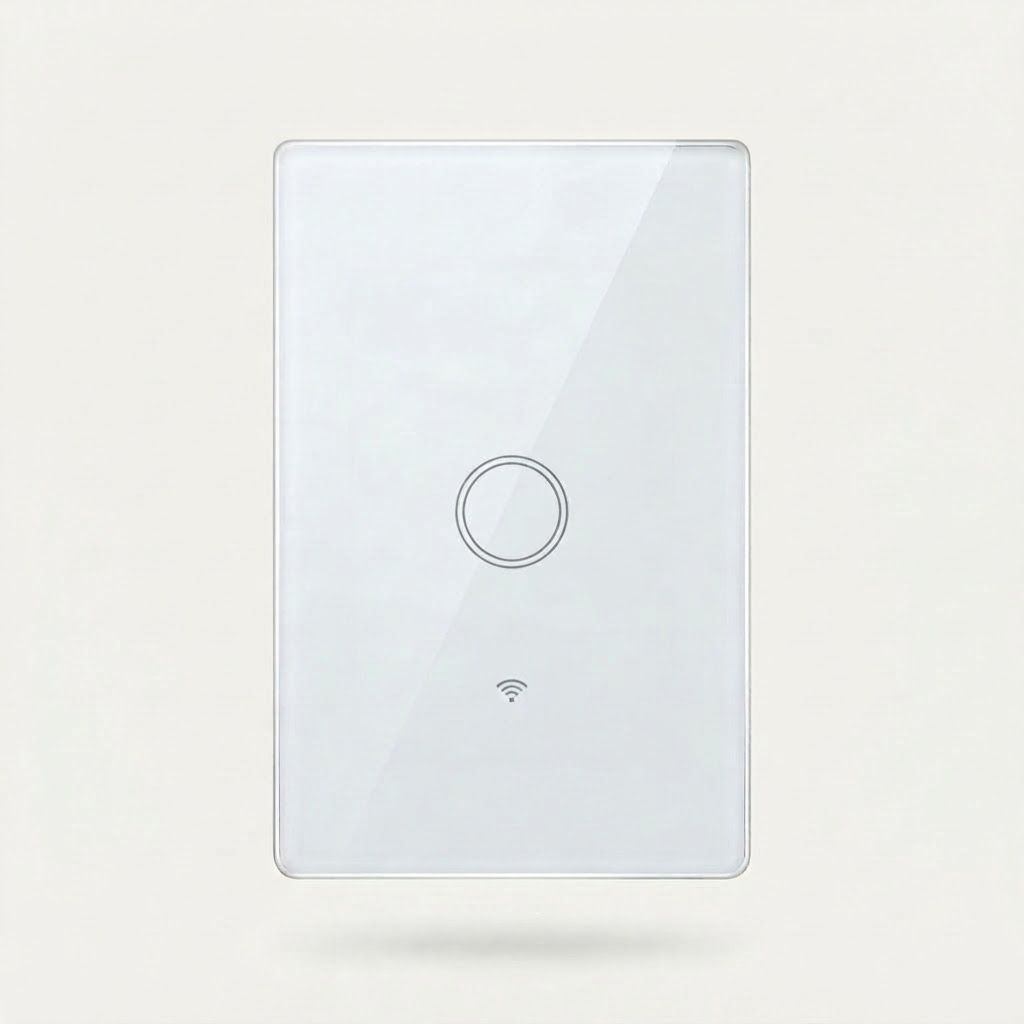
One button
From R329
View plateSmart light switches
Four plate sizes, two finishes, one clean line on the wall. Built to replace the switch you already reach for.
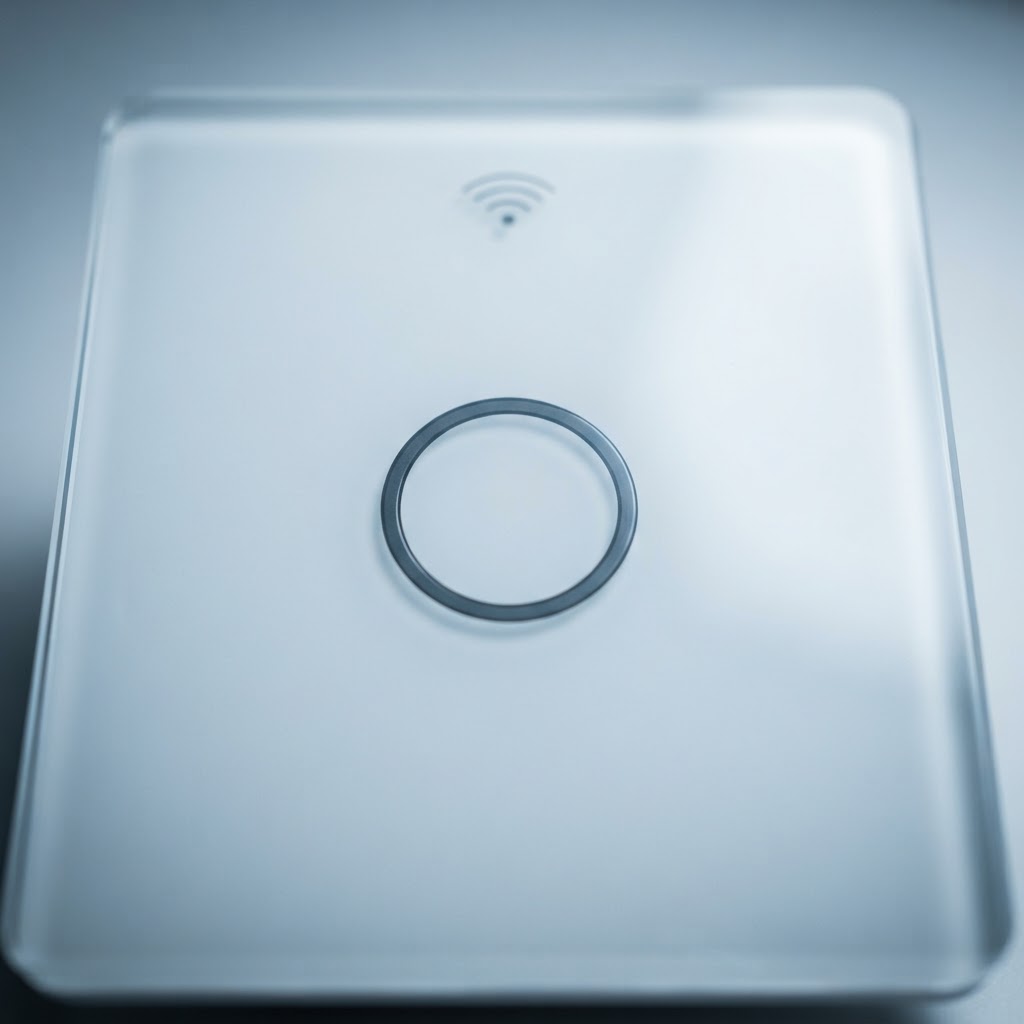
Creative visual — built from the supplied switch photograph
4 plate sizes
2 finishes
8 purchasable variants
Per-variant stock
The range
A gang is simply the number of switch buttons on the plate. Pick the count that matches the number of light circuits at that point on your wall.
One button
From R329
View plate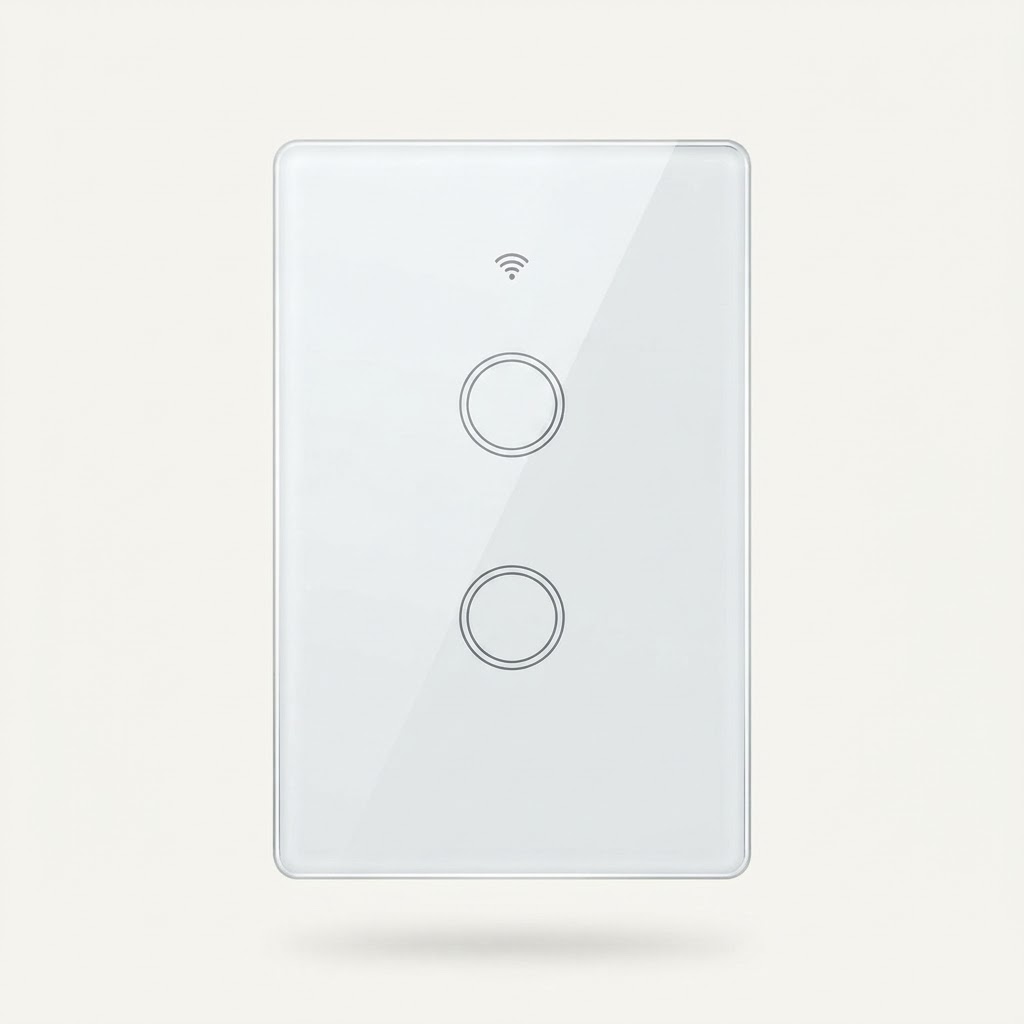
Two buttons
From R399
View plate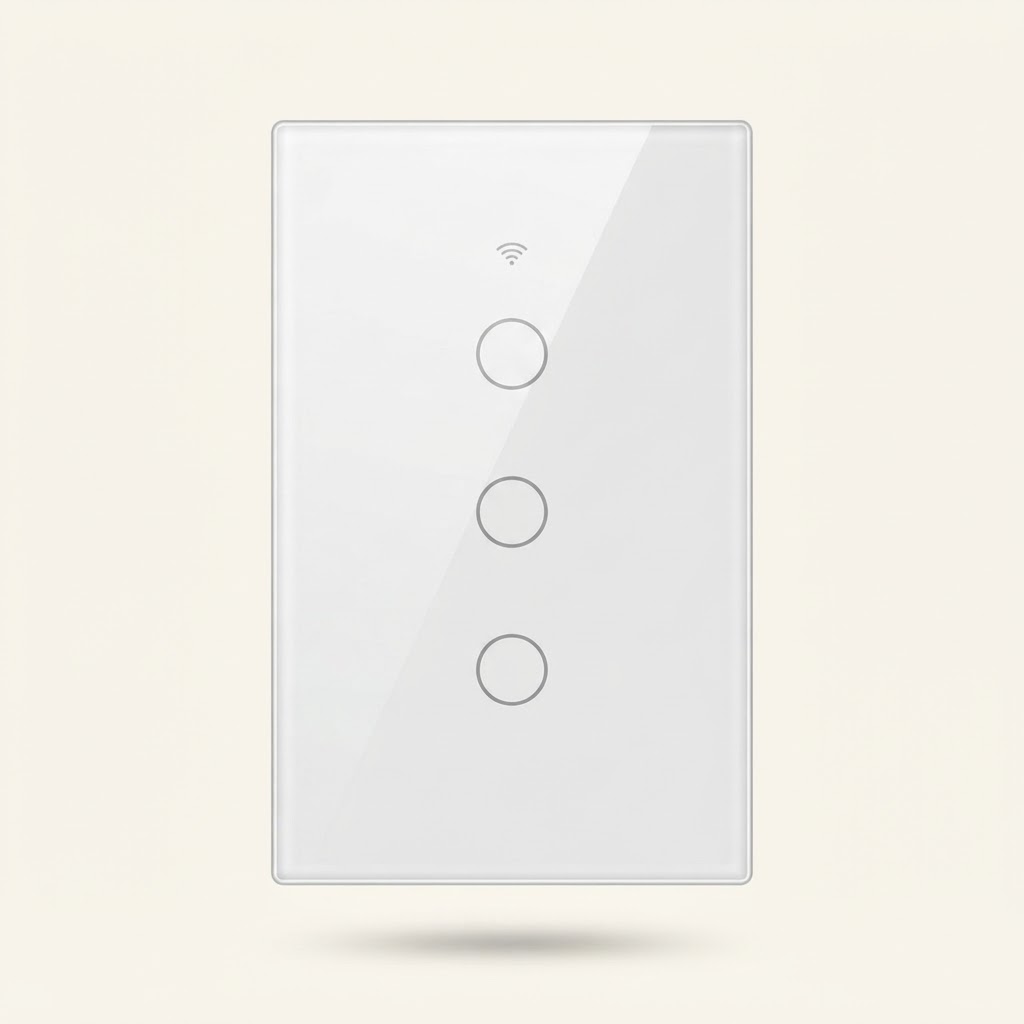
Three buttons
From R469
View plate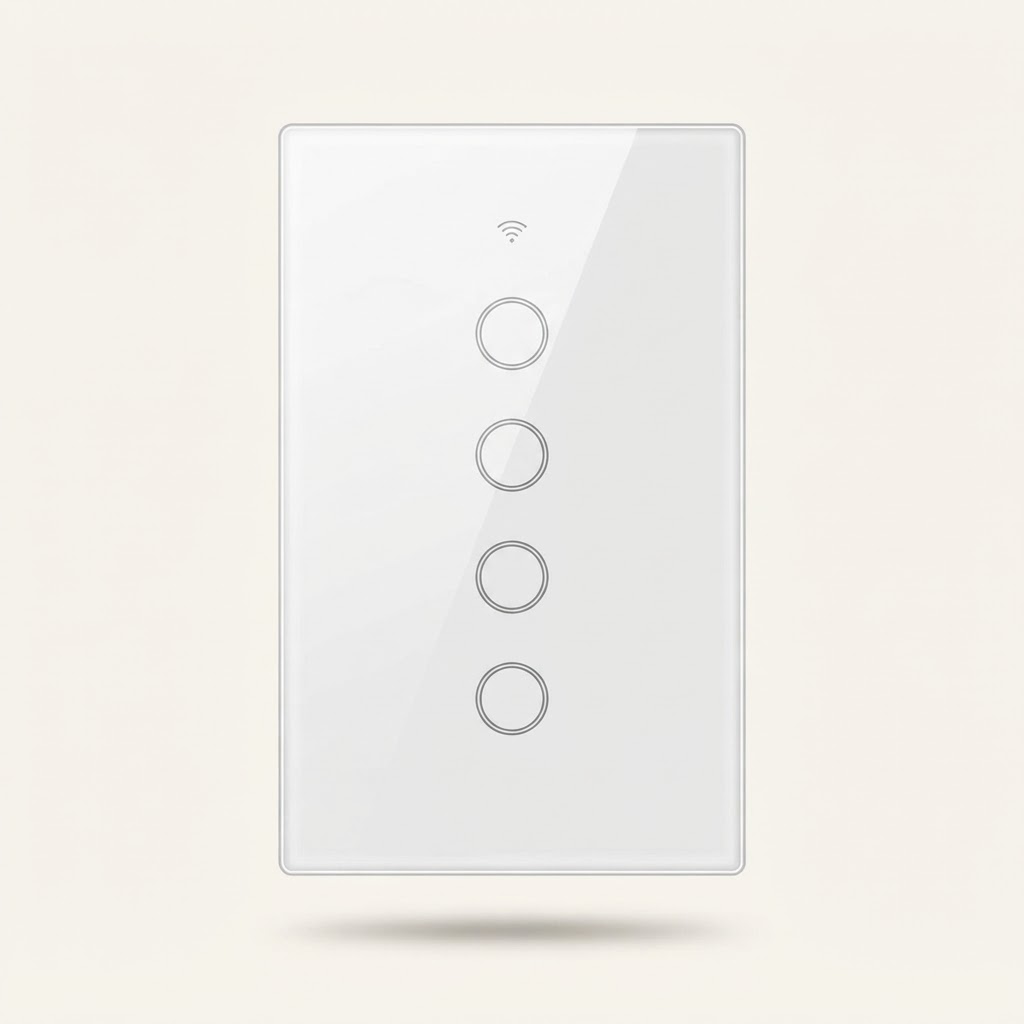
Four buttons
From R529
View plateTEP Enterprise
Four plate sizes, two finishes. Pick the plate, pick the finish, keep the wall clean.
Creative visual — space reserved for store copy
Both finishes are built on the same plate, priced the same and stocked separately. Choose the one that disappears into your wall — or the one that stands out on it.
Sits quietly on pale walls and reads as part of the room. The finish that makes a modern plate look original to the house.
Shop the white finish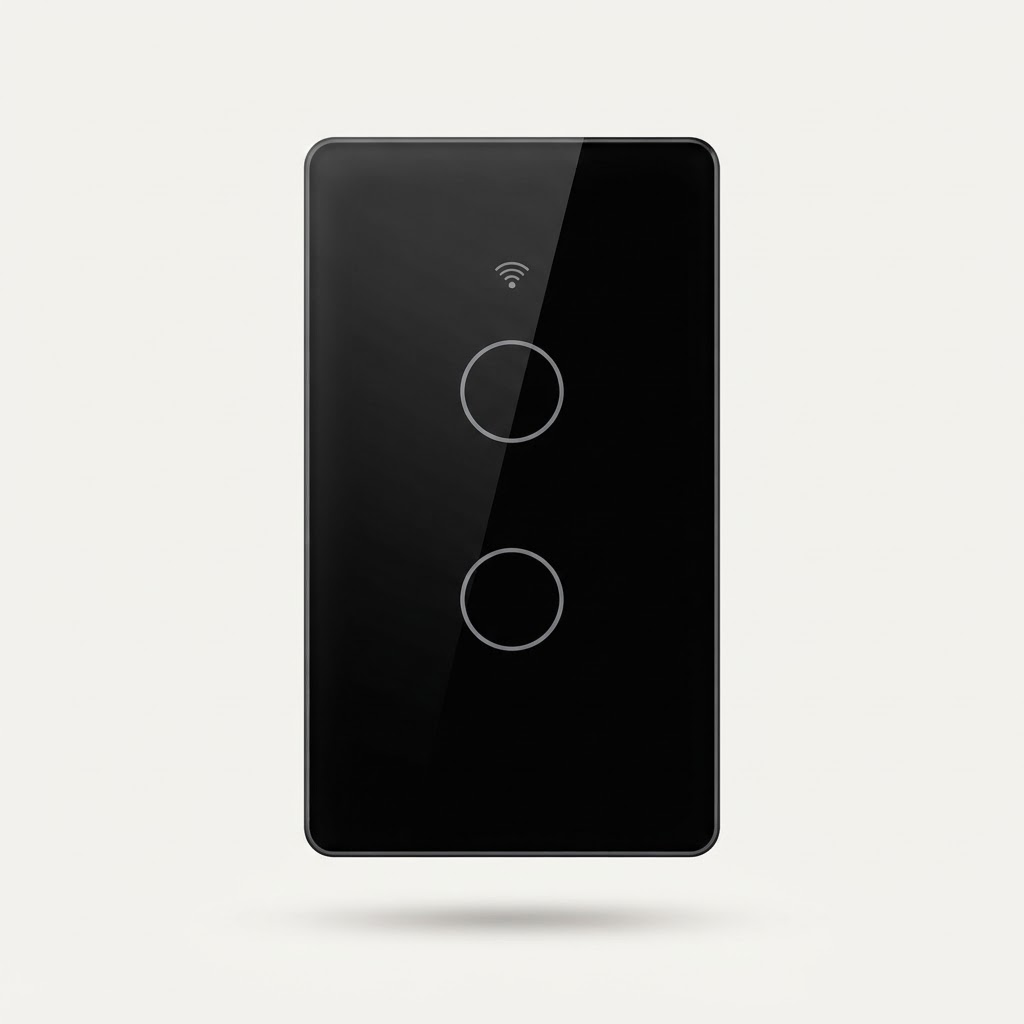
Draws the switch forward instead of hiding it. Best on a dark feature wall, a dark splashback, or where the hardware is meant to be seen.
Shop the black finishOn the wall, in the light
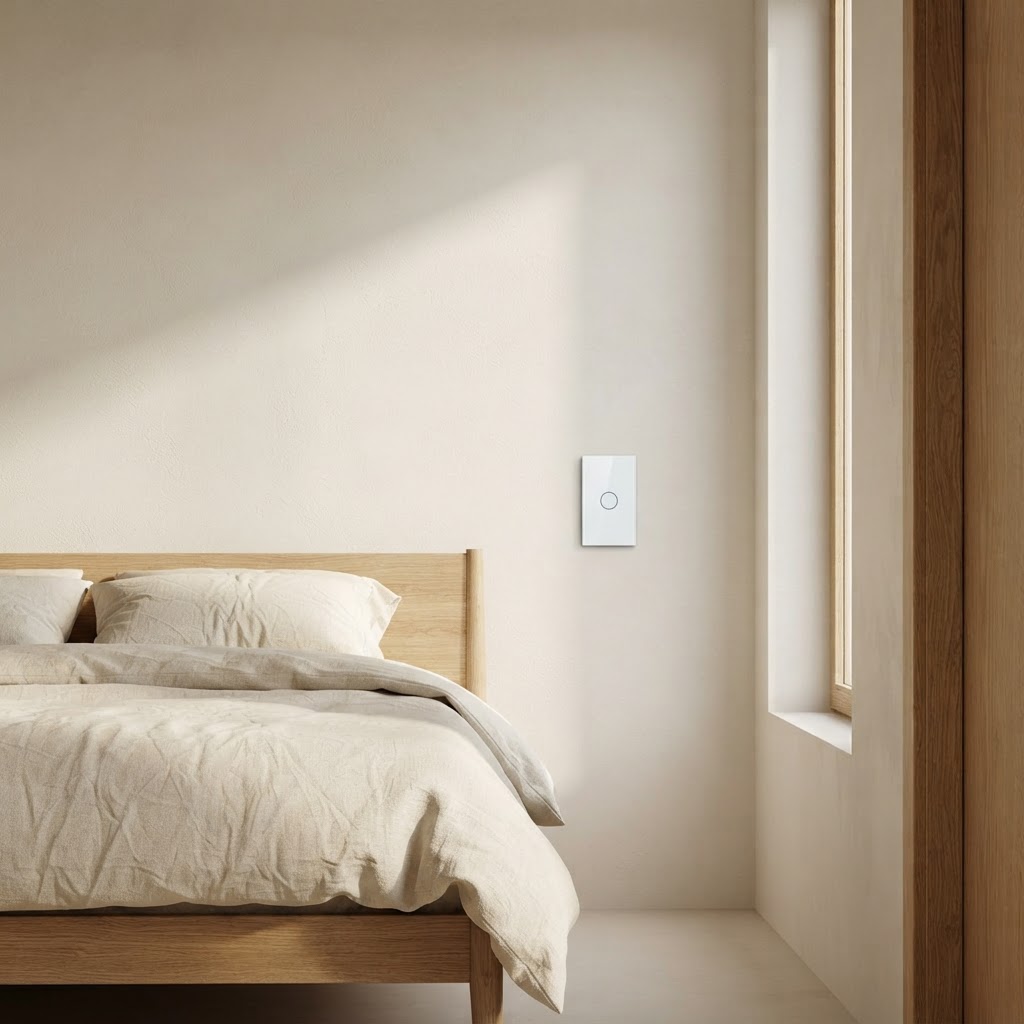
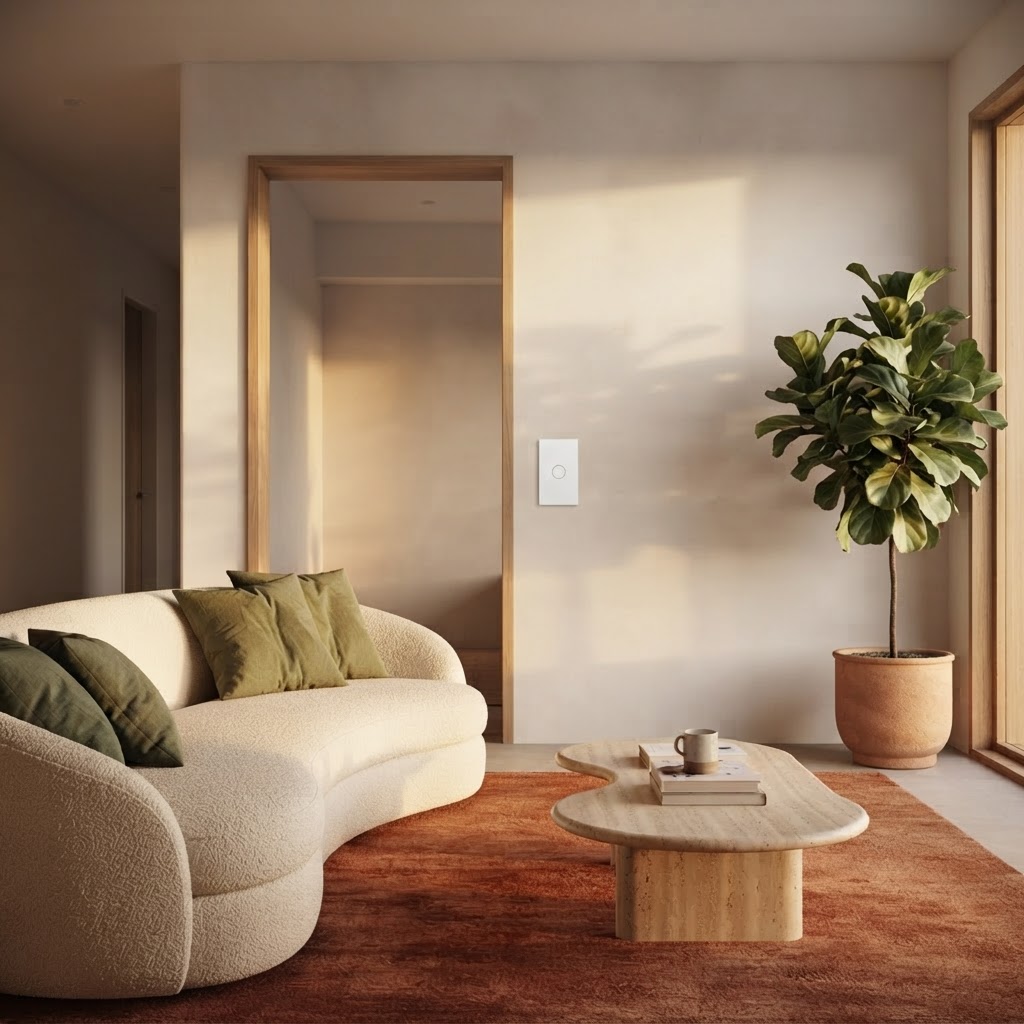
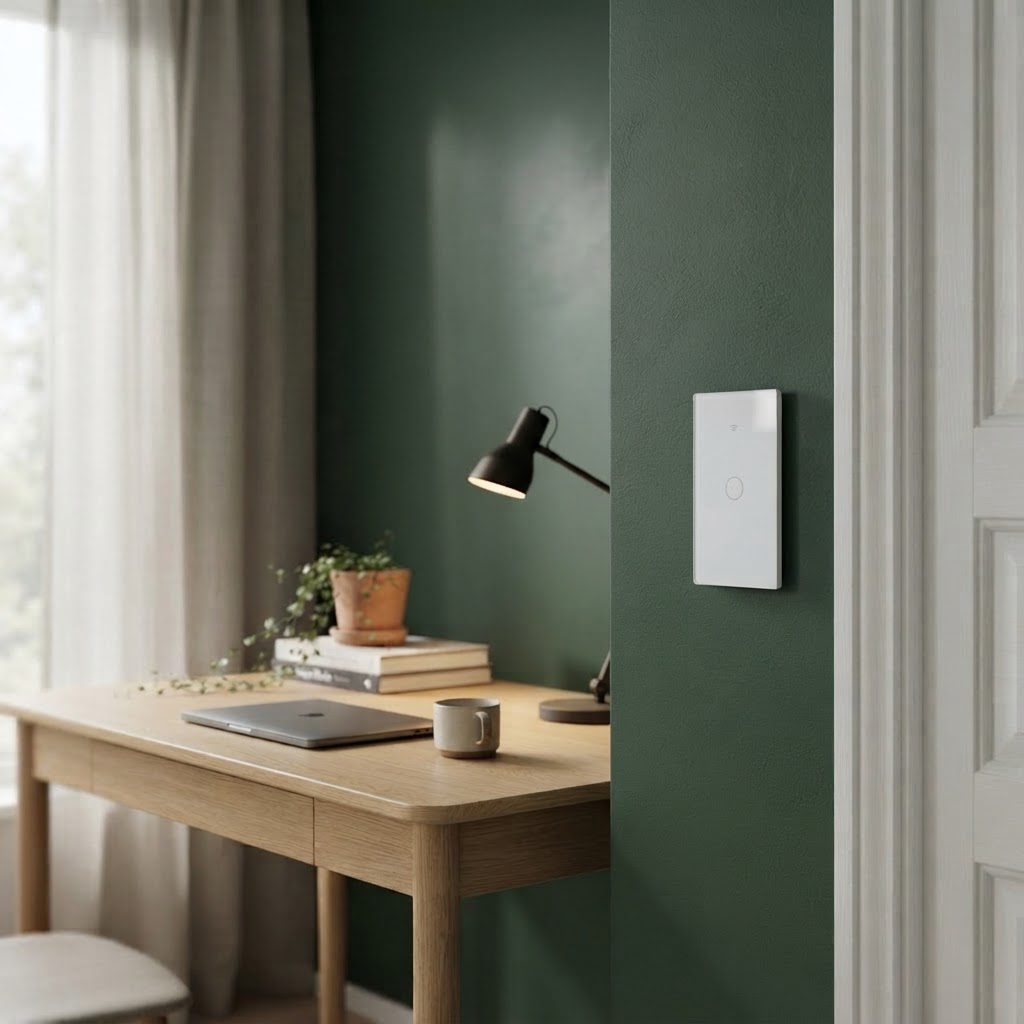
Every composition below is a creative visual built from your supplied switch. The shopping pages carry the verified product photograph.
 Creative visual
 Creative visual
 Creative visual
 Creative visual
 Creative visual
Featured
Preview renderTwo circuits, one plate. Main light and pendant from a single point.
R399
Limited stock
Every gang size uses a single plate. You are not stacking plates or chaining adaptors across the wall to reach four circuits.
White and Black are separate variants with their own SKU, price and stock level, so you can mix them room by room.
1, 2, 3 and 4 gang share the same face design, so a hallway, a lounge and a kitchen can all match without switching ranges.
Support
Wiring, app download, Wi-Fi pairing, resetting and specifications, taken from the instruction manual supplied with the switch. The manual's own words are quoted exactly.
Electrical safety. Installation and wiring must be carried out by a qualified electrician with the power isolated. The correct wiring arrangement must be confirmed for the exact switch model before installation.
The manual prints two separate wiring modes: one for a switch with an “N” terminal and one for single-live-wire working. They are shown here separately, exactly as printed.
INSTALLATION WIRING DIAGRAM
Remove the panel with screwdriver
Make sure the power is off during installation
The switch with “N” terminal supports the following wiring mode
B.Lamp wire connects “L1,L2,L3,L4” terminal C.Neutral wire connects “N” terminal
Switch supports single live wire working can be wired in the following way
A.Live wire connects “L” terminal B.Lamp wire connects “L1, L2, L3, L4” terminal 1 gang connects “L1” terminal 2 gang connects “L1,L2” terminal 3 gang connects “L1,L2,L3” terminal 4 gang connects “L1,L2,L3,L4” terminal C.Capacitance connects first lamp wire and neutral wire.
In our words
Two arrangements, not one
The neutral-wire diagram and the single-live-wire diagram are different circuits. A switch is wired one way or the other, never both. Treat each diagram as applying only to a model confirmed to support it.
In our words
Reading the terminals
“L” is the incoming live terminal, “N” the neutral terminal, and “L1” to “L4” are the lamp outputs — one per gang. On single-live-wire models a capacitor bridges the lamp wire and the neutral wire.
From the supplied manual
Awaiting confirmation
The switch is set up with the Smart Life app (also published as Tuya Smart). The manual's own download steps are quoted below.
HOW TO DOWNLOAD APP
1. Scan the QR code below or search Smart Life in IOS APP store or Google play.
2. Download & Registration A.Scan the QR code to download “Smart Life” Application B.Enter the register/login interface;input the phone number for getting verification code to register or through other methods at the bottom of page jump to related authorization interface to log in.
Official app listings
In our words
App listings
The two buttons below open the official Apple App Store and Google Play listings, checked on 30 October 2026. The same app appears as “Tuya Smart” in some regions and versions.
In our words
About the QR code
The manual prints a QR code for the app. Its photograph has not been attached yet, so we publish no QR destination of our own — use the store buttons above instead.
From the supplied manual
Pair the switch to your 2.4GHz Wi-Fi network with the switch powered on and the app already installed on your phone.
WIFI PARING METHODS
A.Long press any button of the switch until the blue LED flash quickly.
B.Launch “Smart Life” or “Tuya Smart” app tap “+” icon on the top right corner and choose Switch(BLE+Wi-Fi), Enter WIFI password to start pairing.
C.Finish pairing according to the prompt.
In our words
App screens differ by version
Menu names, icons and the order of screens in Smart Life and Tuya Smart change between app versions and phone platforms. The steps above are the manual's; if a screen does not match what you see, the current app instructions take precedence.
In our words
Before you start
Have the Wi-Fi network name and password to hand. The switch pairs on 2.4GHz Wi-Fi, according to the wireless standard printed in the specifications.
From the supplied manual
For RF-supported models only.
RF Pairing Method ( Switch should support RF )
Long press the button that needs RF control until the button blue LED flash once ( also the build status been changed ), then click any button of the RF remote to finish pairing.
In our words
Which models
The manual makes RF conditional on the model. None of the switches sold here is currently confirmed to support an RF remote, so RF is not advertised anywhere on the product pages.
Awaiting confirmation
A reset clears the switch's network settings. It is a different procedure from pairing — use the two together.
Reset Methods
A. Remove the switch by the app directly.
B. Long press any button of the switch about 10-15 seconds until the Blue LED Flash quickly.
In our words
Reset, then pair again
Remove the switch in the app first if you can still reach it. To put it back on the network, follow the Wi-Fi pairing steps above.
SPECIFICATIONS
Specifications printed in the supplied manual.
In our words
One rating, not one per gang
The manual prints a single set of ratings and does not say whether the maximum load applies to each gang or to the switch as a whole. Do not read 1000W as 1000W per button.
In our words
Model confirmation
These values are the ones printed in the supplied manual. They have not been confirmed for each gang size sold here.
Awaiting confirmation
The manual's general notes, quoted as printed. They are manufacturer instructions, not advice verified for every model in the shop.
Basic knowledge
1.Do not connect the input and output reversely.Install correctly 2.If there is a neutral line,the neutral line must be installed. There is no neutral line,a capacitor must be installed 3.The power is too small,generally do not use it below 5W.The power is too large can not used.Specific view product parameters 4.Make sure that the switch is suitable for the local voltage
Awaiting confirmation
The manual's troubleshooting passages are quoted exactly as printed. They contain wording we have not interpreted for you.
Warm reminder
1.Do not cover glass pannel when power on.The switch will not work when cover glass pannel with power on.Please restart the main power switch at home.It will work
2. Solve the problem of insensitive touch Problem : The switch base is screwed too tightly,a gap between the backlight board and the panel Solution : Don't screw the locking screw too deep,if you can't reach it,you can use a longer screw instead,or fill something between the switch and the bottom box.You pay a little attention during the installation process,the situation that the touch is too sensitive usually rarely happens
Awaiting confirmation
The photographs of the instruction manual supplied with the switch. Tap any page to enlarge it, zoom in, or open the original file.
In our words
About compatibility claims
The manual cover refers to Google Assistant and Amazon Alexa. Those are claims printed on the supplied manual and have not been confirmed for the products sold here, so no compatibility badges appear on our product pages.
From the supplied manual
Awaiting confirmation
Questions
Still unsure which to pick?
Tell us what you are replacing and we will point you at the right plate.
hello@example.comOr use the contact formA gang is the number of switch buttons on the plate, and the number of light circuits it can control from that one point. A 1 gang plate has one button, a 4 gang plate has four. Count the buttons on the switch you are replacing.
Yes. White and Black are separate purchasable variants, each with its own SKU, price and stock. Add them to the cart independently.
Not yet. Only the gang count and the available finishes are confirmed. Voltage rating, control protocol, app or voice control, dimming, neutral-wire requirements, certifications and warranty are all awaiting manufacturer confirmation and are marked as pending on each product page.
Stock is tracked per variant, not per product. A sold-out variant shows as Out of stock, its add-to-cart button is disabled, and the order flow rejects it if it becomes unavailable while it is in your cart.
Delivery is calculated from your cart total and shown at checkout before payment. Our rates and lead times are still being confirmed with the courier, so treat the current figures as provisional.
Unused switches in their original packaging can be returned within our published window. The full policy is on the returns page — the window itself is still pending final confirmation.
Contact
Questions about gang sizes, finishes or an order already placed — send a message and we will reply.